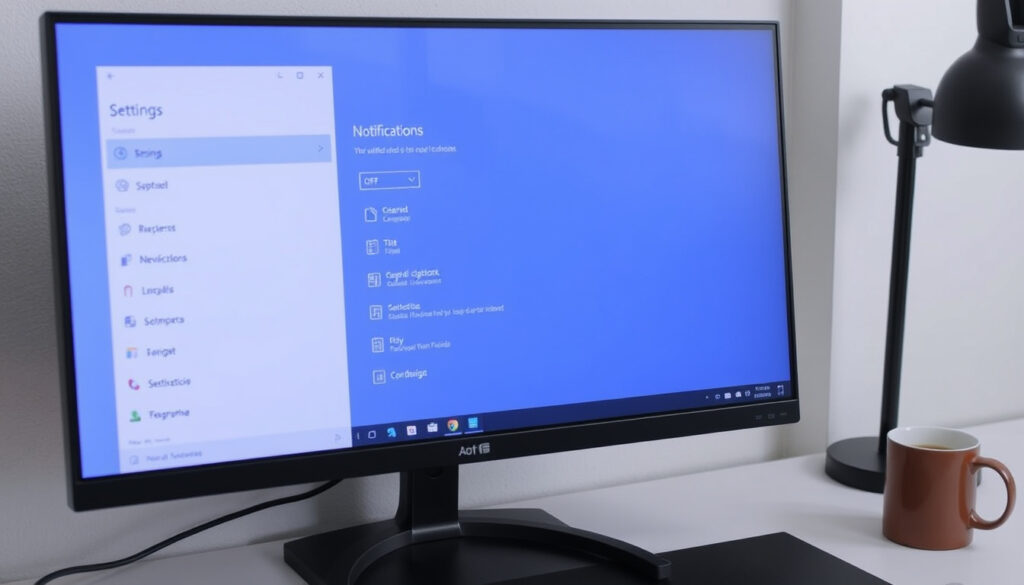
How to Turn Off Windows Notifications: 10 & 11 Guide
Few things derail focus faster than a sudden pop-up notification when you are in the middle of something, whether it is a calendar reminder, a news alert, or a badge from an app — Windows wants your attention now. The good news is you do not have to live with the interruptions, as a single toggle inside Settings can silence the vast majority of notifications.
As Microsoft Q&A (official Microsoft support forum) explains, a single toggle inside Settings can silence the vast majority of notifications. This guide walks through every native method for Windows 10 and 11, from a complete block to fine‑tuning sounds and per‑app rules, so you can decide exactly which interruptions get through.
Default notification display time: 5 seconds ·
Focus Assist modes available: 3 (Off, Priority only, Alarms only) ·
Notification categories in Windows 11: System, App, and Alarms
Quick snapshot
- Notifications can be disabled per app via Settings (Geeks in Phoenix (tech tutorial site))
- Turning off the master toggle disables most notifications (YouTube tutorial)
- Focus Assist automatically silences notifications during set times (Microsoft Q&A (official Microsoft support forum))
- Whether critical system alerts are completely silenced when the master toggle is off (Windows Forum (community support platform))
- No significant timeline changes; notification settings have remained stable across Windows 10 and 11 builds (Microsoft Q&A)
- Future Windows updates may introduce a unified notification manager, but Microsoft has not announced changes as of early 2026 (Geeks in Phoenix)
Three key figures, one pattern: the default time‑out of 5 seconds, the availability of 3 Focus Assist modes (Off, Priority only, Alarms only), and the division of notifications into System, App, and Alarms categories. Together they define the boundaries of what you can control.
| Setting | Details |
|---|---|
| Default notification timeout | 5 seconds |
| Focus Assist modes | Off, Priority only, Alarms only |
| Notification center capacity | Holds last 20 notifications (approximate) |
How do I turn off Windows pop-up notifications?
Disable all notifications via Settings
- Navigate to Start > Settings > System > Notifications in Windows 11, or Settings > System > Notifications & Actions in Windows 10 (Microsoft Q&A).
- Toggle the top‑level “Notifications” switch to Off to disable all notifications from apps and other senders (Geeks in Phoenix).
- Confirm that the toggle is set to Off – a grayed-out toggle indicates notifications are blocked.
Enable Do Not Disturb mode
- Open Settings > System > Focus Assist (Windows 10) or Settings > System > Notifications > Focus Assist (Windows 11).
- Choose between Off, Priority only (only alerts you mark as priority), and Alarms only (Microsoft Q&A).
- Set automatic rules to activate Focus Assist during certain hours or when duplicating your display (Geeks in Phoenix).
Turn off notification banners for specific apps
- On the Notifications page, scroll to the app list and click an app name (Geeks in Phoenix).
- Turn off “Show notification banners” to stop pop‑ups from that app while keeping the notification in the Notification Center.
The trade‑off: disabling everything means you might miss critical system alerts. Focus Assist gives finer control, but priority lists require manual setup.
How do I turn off Windows notification mode?
What is Windows notification mode?
“Notification mode” is Microsoft’s term for the Focus Assist (Windows 10) or Do Not Disturb (Windows 11) feature. It suppresses toast banners and sounds while optionally letting alarms through.
Enable Focus Assist / Do Not Disturb
- Press Windows key + A to open Action Center, then click the Focus Assist icon to cycle through modes (Microsoft Q&A).
- Alternatively, go to Settings > System > Focus Assist and select “Alarms only” to silence everything but alarms.
Customize automatic rules
- Set Focus Assist to turn on automatically during a set time of day, when you are playing a game, or when you are duplicating your display (Geeks in Phoenix).
- Priority list: define which apps or contacts can bypass the silence.
Casual users only need the quick toggle, but gamers and remote workers benefit from automatic rules: the PC silences itself during scheduled meetings without any manual effort.
The catch: Focus Assist does not prevent apps from generating notifications; it only hides and mutes them. When you turn it off, the backlog appears in the Notification Center.
How do I turn Windows 11 sounds off?
Turn off notification sounds for all apps
- Go to Settings > System > Sound > Volume mixer (Geeks in Phoenix).
- Under “Notification sounds,” toggle the switch to Off.
Mute sounds for specific apps
- In Volume mixer, find the app you want to mute (e.g., Microsoft Teams, Slack) and click the speaker icon to mute it (Windows Forum).
Disable system sounds
- Open Settings > Personalization > Themes > Sounds and select “No Sounds” from the Sound Scheme dropdown.
- Alternatively, disable individual system sounds by setting each to “(None)” in the Programs list.
What this means: muting sounds does not stop pop‑ups. If you need total silence, combine a sound mute with Focus Assist.
How to turn off notifications for certain apps Windows 11
Manage per-app notification settings
- Go to Settings > System > Notifications. The app list shows all senders that can generate notifications (Geeks in Phoenix).
- Click an app to expand its controls. Toggle the top switch off to disable all notifications from that app.
- For finer control, uncheck “Show notification banners” (pop‑ups), “Show notifications in notification center,” and “Play a sound when a notification arrives.”
Turn off notifications for Microsoft Teams
- In Teams, click your profile picture > Settings > Notifications and turn off the categories you don’t want. For Windows‑level blocking, use the per‑app toggle inside System Notifications.
Turn off notifications for web browsers
- In Edge/Chrome, go to Settings > Privacy and security > Site settings > Notifications and toggle “Don’t allow sites to send notifications.”
- In Firefox, go to Options > Privacy & Security > Permissions > Notifications > Settings and block all requests.
Per‑app control is the sharpest tool: you can silence a noisy chat app while keeping security alerts from Windows Defender. The trade‑off is time — you have to configure each app individually.
Why this matters: a casual user might want everything off, but a professional juggling work apps benefits from selectively muting only the distractions that matter.
How do I disable System notifications in Windows?
Identify system notifications
System notifications include Windows Update reminders, security alerts (Defender), storage warnings, and maintenance messages. They are sent by the operating system itself, not by third‑party apps.
Turn off system notifications via Settings
- Go to Settings > System > Notifications and turn off “Get notifications from apps and other senders.” This also suppresses most system notifications (Microsoft Q&A).
- However, critical system alerts (e.g., low disk space, security breaches) may still appear even with the master toggle off.
Disable system notifications from Group Policy (Pro users)
- Press Windows key + R, type gpedit.msc and go to User Configuration > Administrative Templates > Start Menu and Taskbar > Notifications.
- Enable “Turn off toast notifications” to block all pop‑ups system‑wide.
The paradox: the most important alerts (security, disk failure) are the hardest to disable — for good reason. If you absolutely need silence, Group Policy is the nuclear option.
Editor’s pick: what users say
“You can choose which notifications you want to see from your apps, or turn off notifications entirely.”
— Microsoft Support documentation (Microsoft Q&A)
“In Windows 10, the main switch labeled ‘Get notifications from apps and other senders’ can be set to Off to stop most notifications.”
— Windows Forum contributor (Windows Forum)
For anyone tired of constant pop‑ups, the path depends on your use case. A casual user can set the master toggle to Off and reclaim peace. A professional juggling work apps should invest time in per‑app configuration and Focus Assist rules. For the gamer or deep‑focus worker, muting sounds and enabling Alarms‑only mode delivers a clean experience without risking missed alarms. The choice is clear: spend a few minutes now to configure notifications, or let the interruptions control your screen time.
For users who manage multiple operating systems, a guide to disabling notifications across devices on Windows also expands to similar settings on other platforms.
Frequently asked questions
How to turn off notification sounds without disabling notifications?
Open Settings > System > Sound > Volume mixer and toggle off “Notification sounds.” This keeps visual banners but stops audio.
Does turning off notifications affect alarm apps?
Focus Assist’s “Alarms only” mode is designed to let alarms through. Disabling the master toggle will also silence alarms, so use Focus Assist instead if you need wake‑up alerts.
How to stop notifications from specific websites?
In your browser’s settings, go to the Notifications section under Privacy & Security, and block site notification prompts.
Can I delay notifications in Windows?
No native delay exists. You can schedule Focus Assist to turn on at certain times, effectively delaying visibility until the session ends.
How to clear old notifications from notification center?
Open the Notification Center (Windows key + N) and click “Clear all” at the top, or swipe them away individually.
How to disable notifications for the Microsoft Store app?
Go to Settings > System > Notifications, find “Microsoft Store” in the app list, and toggle it off.
What is the difference between turning off notifications and using Do Not Disturb?
Turning off notifications (master toggle) stops all generation; Do Not Disturb hides banners and sounds but still records notifications in the center. Use Do Not Disturb if you want to review alerts later.
More related posts
 Denver Nuggets vs Phoenix Suns Match Player Stats – Dec 25 Box Score & Analysis
 Singapore Dollar in India: Live Rate, Salary & Gold Guide
 Ong Beng Seng Pleads Guilty – Singapore F1 Corruption Details
 Billie Eilish Mirror Strap Photo: Controversy Explained
 Divorce Lawyer in Singapore: Costs, Timeline & Entitlements
 Singapore Airlines SG60 Promotion: Discounts, Vouchers & Deals
 Fan Ji Speciality Noodle Review: Menu, Location & Comparison
