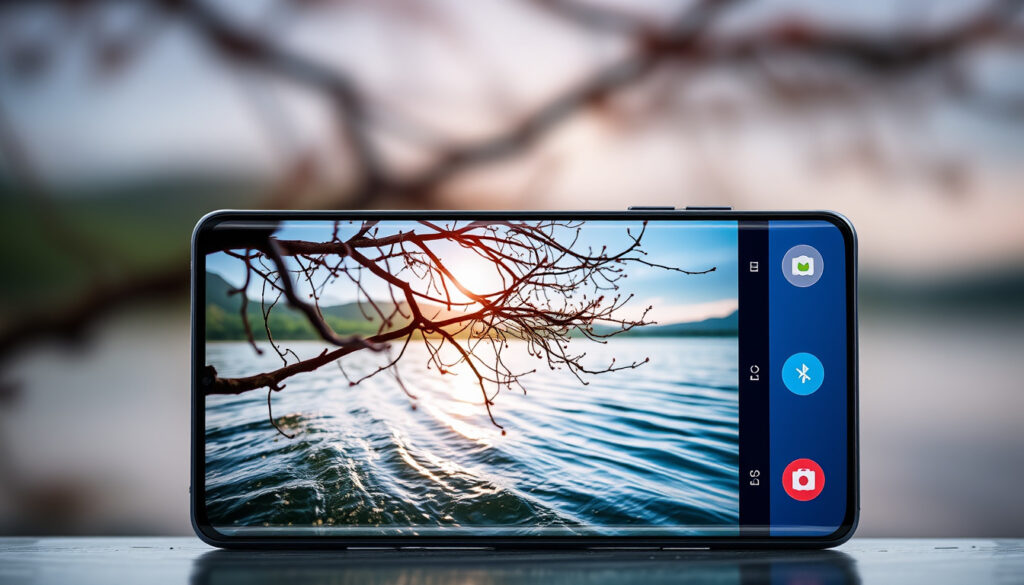
Galaxy S25 Live Effect Photo: How to Enable and Use
Samsung’s Galaxy S25 embeds an AI tool called Live Effect that turns flat photos into 3D-looking animations. The feature lives in the Gallery app on the S25, S25+, and S25 Ultra, letting you add zoom, pan, or swivel motion to any image you’ve already captured.
Here’s how to find it, turn it on, and get the most out of it.
Feature Name: Live Effect ·
Purpose: Adds 3D visual depth to photos ·
Access Point: Gallery app ·
Compatible Devices: Galaxy S25 series ·
Related Mode: Motion Photo
Quick snapshot
- Live Effect is available on Galaxy S25, S25+, and S25 Ultra (Samsung US Support)
- Access it by swiping up on any photo in the Gallery app (Samsung US Support)
- After applying, tap Save copy to keep the original intact (Samsung US Support)
- Exact launch date for the Live Effect feature rollout
- Full list of supported animation styles beyond zoom, pan, and swivel
- Performance differences by software version or region
- Galaxy S25 series launched with Live Effect in early 2025
- Android 15 support confirmed across the S25 lineup
- Official Samsung support pages published in 2025
- Live Effect expected to roll out to more Galaxy AI devices
- New animation styles likely with future One UI updates
- Deeper integration with Creative Studio app anticipated
Five data points on the feature’s core specs and usage: the Galaxy S25 lineup supports it, Gallery is the home base, swiping up is the main entry point, Android 15 is required, and Save copy preserves originals.
| Label | Value |
|---|---|
| Official Name | Live Effect |
| Developer | Samsung Galaxy |
| Key Benefit | 3D visual depth |
| App Required | Gallery |
| Models | S25, S25+ |
| Models | S25 Ultra |
Does the Samsung S25 have Live Photos?
The Galaxy S25 doesn’t have Apple’s Live Photos feature by that name, but it has something functionally similar called Live Effect. According to Samsung’s official support page, Live Effect is an AI-powered feature in the Gallery app that adds animations like zooming, panning, or swivel motions to still photos. Unlike Motion Photo — which captures a brief video clip when you take a picture — Live Effect works on photos you’ve already shot, applying three-dimensional-looking effects after the fact.
The distinction matters for how you use each feature. Motion Photo is a camera setting you toggle on before shooting; Live Effect is a post-capture edit you apply in Gallery. Samsung positions Live Effect as part of its broader Galaxy AI editing suite, which means it uses artificial intelligence to analyze your photo’s depth and composition before applying the animation.
Live Effect isn’t available on every photo. According to Samsung’s regional guide, photos work best when they have depth data — portrait shots and images taken with recent Samsung camera modes tend to produce the strongest results.
Differences from Motion Photo
Motion Photo captures a few seconds of movement when you press the shutter, preserving the moment before and after the still frame. Live Effect, by contrast, synthesizes motion from a single image using AI. One adds real motion; the other creates the illusion of motion. You can enable Motion Photo in the Camera app settings, then still apply Live Effect later if the photo has enough depth information for Galaxy AI to work with.
Official Samsung confirmation
Samsung has published Live Effect guides on its official support portals for multiple regions, including the US and India. The feature is listed under Galaxy AI editing tools and confirmed for the Galaxy S25, S25+, and S25 Ultra models running Android 15. Samsung also notes that Live Effect may add an AI watermark to processed images, signaling that Galaxy AI generated the effect.
How to add live effects to photos on Samsung?
Adding a Live Effect to a photo on your Galaxy S25 takes just a few taps once you know where to look. The primary method uses the Gallery app’s swipe-up interface, which surfaces editing options including Live Effect when available for a given photo.
Steps in Gallery app
Open the Gallery app on your Galaxy S25 and select the photo you want to enhance. Samsung’s official guide outlines the process: swipe up on the photo to reveal the details panel, then look for the Live effect option and tap it. The AI processes the image and shows a preview with the animation applied. If you’re satisfied, tap Save copy to create a new version while keeping the original intact.
There’s also an alternative path if you prefer it. Tap the Edit icon while viewing a photo, then select Generative edit, and you’ll find Live effect among the options there. Samsung’s support page confirms both routes lead to the same result.
Save as new image
After applying Live Effect, the app displays the animated preview. Samsung explicitly recommends tapping Save copy rather than overwriting the original. This preserves your unmodified photo while adding the new animated version to your Gallery. The saved copy includes the AI watermark if Galaxy AI contributed to the effect, which Samsung adds as a disclosure marker on AI-edited images.
Keeping the original means you can experiment freely with Live Effect without losing the unedited version. The animated copy lives alongside it, and you can set either as your wallpaper or share the animated version directly from the preview screen.
How do I turn on Live Photos on my Samsung?
The phrasing of this question usually means one of two things: you want to enable Motion Photo so future photos capture movement, or you’re trying to find and activate the Live Effect feature. Both are straightforward, but they live in different places on your phone.
Enable Motion Photo in Camera
To capture photos with Motion Photo enabled, open the Camera app on your Galaxy S25. Tap the four dots in the upper-right corner to access More options. Among the toggles there, you’ll find Motion Photo. Tap it to turn the feature on — Samsung marks the active state clearly in the UI. When enabled, any photo you take will include a brief video clip alongside the still image.
This setting persists until you turn it off, so you only need to do this once unless you prefer standard still photos by default.
Toggle in settings
For deeper control, Samsung also lets you manage Motion Photo through the phone’s general Settings. Navigate to Settings > Camera, and you’ll see the same Motion Photo toggle available there. This is useful if you prefer to configure camera behavior without diving into the Camera app’s overlay menus.
Once Motion Photo is on, you can still apply Live Effect to those photos later in Gallery if they contain enough depth information for Galaxy AI to work with. The two features complement each other — Motion Photo records actual motion, while Live Effect generates synthesized animation from a single frame.
Turn on Motion Photo once, and every photo you take from that point captures a short video clip. Then apply Live Effect in Gallery for photos where you want that extra layer of AI-generated animation.
How to use live effect on Samsung?
Using Live Effect on a Galaxy S25 means working within the Gallery app after your photo is taken. The feature analyzes the image using Galaxy AI and applies one of several animation styles — Samsung’s official documentation mentions zooming, panning, and swivel motions as the core options.
Apply to existing photos
Select any photo in Gallery that you’d like to animate. Swipe up to open the details view, then tap Live effect. The phone processes the image and shows a preview animation. You can tap through different effect variations if Samsung’s implementation offers multiple styles for the same image. When you’re happy with the result, Save copy to create a new animated version.
Samsung notes that Live Effect isn’t available for every photo — images with better depth data (typically portrait shots or photos taken with newer Samsung camera modes) tend to work best. If the option doesn’t appear when you swipe up, the photo likely lacks sufficient depth information for Galaxy AI to generate the effect.
Preview and edit
The preview screen shows the animation in real time before you commit to saving. According to verified tutorials, you can set the Live Effect photo as your wallpaper directly from the preview if you want to see the animation every time you unlock your phone. Samsung also confirms that sharing works directly from the preview — you can send the animated version to friends without saving it to your Gallery first.
If Live Effect doesn’t appear after swiping up, try a different photo — portrait shots and images from recent Samsung camera modes work better than screenshots or heavily edited photos. Also check that your phone is running Android 15, as the feature requires that specific OS version.
How do I turn on live photo mode?
On Samsung phones, the equivalent of “live photo mode” is Motion Photo. Unlike Apple’s implementation where Live Photos are on by default, Samsung keeps Motion Photo as an opt-in setting. The good news is that enabling it is a one-time action that applies to all future photos until you turn it off.
Camera settings path
Open Camera, find the four-dot menu in the upper-right corner, and select More options. Look for Motion Photo in the list and tap the toggle to enable it. Samsung’s UI shows a clear indicator when the feature is active, so you won’t second-guess whether it’s on. From that moment forward, every photo you take includes a short video clip alongside the still image.
Gallery application steps
Once you have photos with Motion Photo data, you can enhance them further using Live Effect. Open the photo in Gallery, swipe up, and tap Live effect. This is where Motion Photo and Live Effect intersect — a photo captured with Motion Photo has rich depth data that makes Live Effect work particularly well. Samsung’s India support guide notes that Live Effect may show a message saying “Adding live effect” during the processing phase.
For Galaxy S25 Ultra specifically, Samsung’s compatibility listing confirms both Motion Photo and Live Effect are fully supported across the entire S25 lineup, including the FE and Edge models.
Live Effect may not appear for every photo, even if Motion Photo was on when you captured it. Samsung’s official documentation states that Live Effect requires photos with accurate depth capture — if the camera didn’t record depth information properly, the feature won’t be available regardless of your Motion Photo setting.
Step-by-step: Enabling and using Live Effect on Galaxy S25
Here’s the complete workflow for getting Live Effect working on your Galaxy S25, from enabling Motion Photo at capture time through applying the AI effect in Gallery.
- Enable Motion Photo in Camera: Open Camera, tap the four dots (More), find Motion Photo, and turn it on. This ensures future photos capture depth data that Live Effect can use.
- Take your photo: Capture a portrait shot or any photo with good depth. Portrait mode photos tend to work best with Live Effect.
- Open the photo in Gallery: Navigate to your photo and open it in the Gallery app.
- Swipe up to reveal options: Samsung’s primary access method is swiping up on the photo to open the details panel.
- Tap Live effect: If available for your photo, the Live effect button appears in the details panel. Tap it to start processing.
- Preview the animation: Watch the real-time preview showing the AI-generated animation. The effect may include zooming, panning, or swivel motion.
- Save a copy: Tap Save copy to preserve the animated version alongside your original photo.
- Share or set as wallpaper: From the preview screen, you can share the animated photo directly or set it as your lock screen wallpaper.
Confirmed facts and open questions
Three things stand clear from Samsung’s official documentation and verified tutorials. Live Effect works on the Galaxy S25, S25+, and S25 Ultra running Android 15, accessible through the Gallery app by swiping up on compatible photos. The Save copy option always preserves your original image. Motion Photo is a separate capture-time feature that adds real video clips — different from Live Effect’s AI-synthesized animations.
What remains less certain: the exact rollout timeline for Live Effect across different regions and One UI versions. Samsung’s official guides reference the feature broadly, but granular version-by-version availability details are harder to pin down from public sources. The full scope of animation styles beyond zoom, pan, and swivel also isn’t fully documented in Samsung’s published materials.
Confirmed
- Live Effect available on S25, S25+, S25 Ultra via Gallery app
- Primary access: swipe up on photo, tap Live effect
- Alternative: Edit → Generative edit → Live effect
- Save copy preserves original photo
- Motion Photo must be enabled in Camera for depth data
- Galaxy AI adds watermark to processed images
- Android 15 required on Galaxy S25 lineup
Unclear
- Exact launch date for Live Effect feature rollout
- Full list of animation styles beyond zoom/pan/swivel
- Performance differences by One UI version or region
- User-reported failure rates or compatibility bugs
“Live Effect will bring your photos to life with animations. The effect may differ depending on the photo.”
— Samsung US Support, Official Galaxy AI Guide
“‘Live Effect’ feature provides the experience of viewing 2D images in 3D.”
— Samsung India Support, Regional Support Documentation
“This hidden Galaxy S25 feature makes me want to use the Samsung Gallery app.”
— Android Central, Tech Review
The bottom line on Live Effect and its place in the Galaxy S25 ecosystem is straightforward: Samsung built it as a differentiating feature that Google Photos simply doesn’t offer. For Galaxy S25 owners, the choice to enable Motion Photo for richer captures, then layer Live Effect for AI-generated animation, gives you two distinct tools for more dynamic photos. The feature is opt-in and non-destructive by design — Samsung clearly intended it to encourage exploration rather than replace originals. Anyone who wants their still photos to stand out on social media will find Live Effect worth the two-tap investment.
Related reading: Touch ‘n Go eWallet – Complete 2025 Guide for Malaysians · Singapore Corporate Tax Rate: 17% Flat Rate 2025 Guide
youtube.com, youtube.com, youtube.com, samsung.com, youtube.com, youtube.com, samsung.com, youtube.com
Frequently asked questions
What is the difference between Live Effect and Motion Photo on Galaxy S25?
Motion Photo captures a short video clip when you press the shutter — it’s real movement recorded at capture time. Live Effect synthesizes animation from a single still image using Galaxy AI, creating the illusion of motion without any actual video. Both are Samsung features, but they work differently: Motion Photo is a camera setting, while Live Effect is a Gallery app editing tool.
Can I use Live Effect on non-S25 Galaxy phones?
Live Effect is part of Samsung’s Galaxy AI suite, which Samsung has been expanding across newer Galaxy devices. According to Samsung’s compatibility listings, the feature also appears on Galaxy S25 FE and S25 Edge models. Older Galaxy phones may not have the feature, and availability depends on your One UI version and region.
Does Live Effect work on all photo formats?
Live Effect works best on photos with sufficient depth data — portrait shots and images taken with Samsung’s newer camera modes tend to produce the strongest results. Screenshots, heavily cropped photos, and images from third-party camera apps may not show the Live Effect option. Samsung’s official guide notes that the feature requires accurate depth capture from the original photo.
How to remove Live Effect from a photo?
If you’ve saved an animated Live Effect copy, you can’t “remove” the effect from that copy — but your original photo remains untouched. Samsung’s Save copy workflow always preserves the unedited original in your Gallery. To undo a Live Effect, simply delete the animated copy and work from the original.
Is Samsung spatial photo the same as Live Effect?
Samsung uses “spatial photo” terminology in some contexts to describe photos with depth information that enable 3D viewing or AR features. Live Effect specifically refers to the AI-powered animation feature in Gallery that adds zoom, pan, or swivel motion to static photos. They overlap in that both use depth data, but Live Effect is the named feature for the animation effect.
What if Live Effect option doesn’t appear?
If Live Effect doesn’t appear after swiping up on a photo, the image likely lacks sufficient depth data for Galaxy AI to generate the animation. Try a portrait photo taken with Motion Photo enabled, or a recent shot from Samsung’s native camera app. Also verify your phone is running Android 15, as the feature requires that specific OS version on Galaxy S25 devices.
Can I share Live Effect photos to iPhone?
Live Effect photos saved as copies function like standard image files with embedded animation — they can be shared via messaging apps, email, or cloud services. How the recipient views the animation depends on their device and app. Some platforms may display the animated version; others might show just the first frame. Testing with your preferred sharing method is the best way to confirm compatibility.
More related posts
 One Battle After Another Reviews: Why Critics Are Divided (2025)
 The Fantastic Four: First Steps Showtimes Near Me, Runtime & Cast
 Mewatch Channel 8 Live – Free Streaming Guide
 How to Draw a Dragon: Easy Step-by-Step Guide for Beginners
 Weak Hero Class 2 Cast: All Actors & Characters (Netflix 2025)
 T-Bill Auction Results Today – Latest Status and Analysis
 Convert PDF to Word: 2025 Free Tools Compared for Accuracy
 Halal Dessert Near Me: Ireland Guide & Spots Open Now
