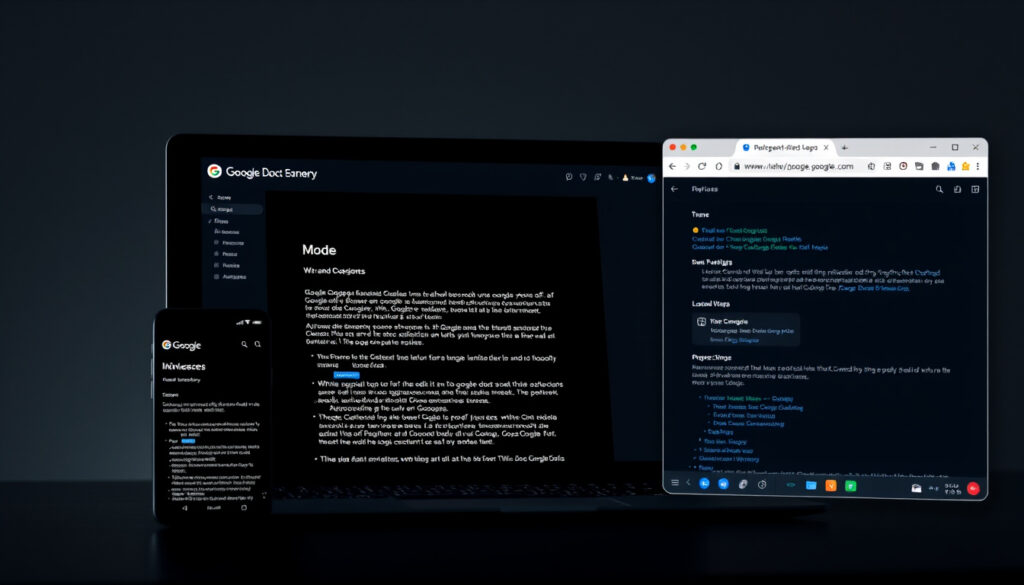
Google Docs Dark Mode: Enable on PC, Mobile & Extensions
If you’ve been squinting at Google Docs in a late-night coding session, you’re not alone — and you’re probably wondering why something this basic still isn’t built in. Here’s the deal: Google Docs does have a dark mode, but whether it works on your device depends entirely on how you’re accessing it. The good news is that workarounds exist for every situation, and some of them are surprisingly elegant.
Native desktop dark mode: No · Mobile app support: Yes · Chrome extension options: Multiple available · Pageless format workaround: Yes for custom backgrounds · Official Google support page: Confirms mobile only
Quick snapshot
- Mobile apps have built-in dark mode (Googally)
- Desktop browser lacks native dark mode toggle (Business Insider)
- No official timeline for desktop native dark mode
- Whether Google Workspace admins will ever gain control over this setting
- Mobile apps gained dark mode before 2026
- Chrome force dark flag available since 2019
- Extension published since 2018, still widely used in 2026
- Desktop users must continue relying on extensions or browser flags
- Mobile dark mode remains the only native option
Five key facts shape the Google Docs dark mode landscape: the feature exists natively only on mobile, desktop users have zero built-in options, extensions fill the gap on PCs, and Google Workspace admins have no control over this setting.
The table below summarizes the current availability of dark mode across different Google Docs platforms and methods.
| Feature | Status |
|---|---|
| Native PC dark mode | Unavailable |
| Mobile dark mode | Available |
| Popular extension rating | Chrome store listings |
| Workaround method | Pageless format |
| Google Support status | Mobile confirmed |
Is there a dark mode for Google Docs on PC?
Short answer: no — not natively. Desktop Google Docs opened in a browser has no built-in dark mode toggle, confirmed by Google’s own support documentation (Business Insider). This isn’t an oversight that slipped through the cracks recently; the desktop version has been missing dark mode since before 2026, and Google has given no public timeline for when it might arrive.
Native support status
- Desktop browsers: No native dark mode toggle
- Mobile apps: Yes, built-in theme settings
- Chromebooks: System-level toggle applies to browser Docs
Official Google confirmation
Google’s support channels explicitly state that dark mode is currently only available for mobile devices, not the desktop app (Googally). This isn’t a case where the feature is hidden or undocumented — it’s simply absent from the desktop experience. Google Workspace admins also cannot enforce dark mode through admin controls; it’s entirely a per-user device setting.
Google Docs on desktop is essentially a web application, and web apps historically lagged behind native software in adopting system-level preferences like dark mode. This gap has persisted even as other Google Workspace apps received dark mode support.
The implication: desktop users face an ongoing gap that Google shows no signs of closing natively.
How do I turn on dark mode on the Google Docs app?
If you’re using the Google Docs mobile app on Android or iOS, you’re in luck — dark mode is built right in and takes less than a minute to enable. The process differs slightly between platforms, but both follow the same logic: find the theme setting and switch it to Dark.
Android steps
- Open the Google Docs app on your Android device
- Tap the hamburger menu (three lines) in the top-left corner
- Select “Settings” from the menu
- Tap “Theme” under the settings list
- Choose “Dark” — the app immediately switches to dark mode
According to verified steps from Business Insider, the exact path is Menu > Settings > Theme > Dark. The mobile dark mode applies to new documents and editing alike, and it follows your device’s system theme by default if you select “System default” instead.
iOS steps
- Open the Google Docs app on your iPhone or iPad
- Tap the gear icon to access Settings
- Look for the Theme option
- Toggle to Dark or System Default
The iOS app mirrors Android functionality — both platforms have native dark mode support that was added before 2026 (Googally). If your device is already running in dark mode, Google Docs will respect that system setting automatically.
Mobile dark mode isn’t just about aesthetics — research from GeeksforGeeks confirms that dark mode reduces eye strain in low-light environments, making late-night document editing genuinely more comfortable.
The pattern: mobile dark mode is polished and hands-off, requiring zero third-party tools once enabled.
Why can’t I change my Google Docs to dark mode?
If you’re sitting at a desk with Google Docs open in Chrome on Windows 11 or macOS, you might be wondering why that dark mode toggle simply doesn’t exist. The answer lies in how Google built the desktop experience — it’s a progressive web app that hasn’t inherited the system-level dark mode preferences that native mobile apps can access.
Desktop limitations
- No toggle in File > Settings or any menu
- Google Docs desktop is a web app, not a native application
- System-level dark mode from your OS doesn’t cascade into Google Docs in the browser
- Even Google Workspace admins cannot force dark mode for their users
Common errors
Users frequently search for a dark mode toggle in the wrong places — inside Format > Page setup or under View preferences. Reddit discussions are full of users confused about why Google Docs “still doesn’t have a built-in dark mode” years after mobile apps received the feature. The reality is that until Google adds native desktop support, workarounds are the only option.
The Chrome system dark mode flag (chrome://flags/#enable-force-dark) affects all web contents globally, not just Google apps. Enabling it means every website you visit gets forced into dark mode — which can break sites with custom branding or cause display issues with embedded content.
What this means: desktop users must accept trade-offs — global browser flags affect everything, while extensions add toolbar clutter but stay targeted to Google Workspace apps.
How to make Google Docs dark mode on desktop or mobile?
Desktop users have two main paths: browser extensions or Chrome flags. Mobile users have it easiest with native support. There are also a few creative workarounds worth knowing about, especially if you want a custom dark experience that extensions can’t quite deliver.
Desktop extensions
- Google Docs Dark Mode (recommended): Installs from the Chrome Web Store and adds a toggle in the top-right corner of Docs, Sheets, and Slides. Works across Google Workspace without affecting other websites (Chrome Web Store)
- Dark Reader: Site-wide dark mode extension with customization for brightness, contrast, and sepia tones. Activates immediately without browser relaunch (Aki Stepinska)
- Night Eye: Offers brightness, contrast, saturation, and blue light filter adjustments. May require a page refresh if dark mode doesn’t apply automatically (Aki Stepinska)
- Dark Docs (GitHub): Open-source UserCSS theme for users who want maximum control over their dark mode styling (GitHub)
Chrome flag method
- Navigate to chrome://flags/#enable-force-dark in your Chrome address bar
- Set “Auto Dark Mode for Web Contents” to Enabled
- Relaunch Chrome as prompted
- The document canvas turns dark with light text for all websites
The Chrome flag method differs from extensions in one key way: it forces dark mode on all sites, not just Google Docs (Googally). Extensions like Google Docs Dark Mode target specific apps and toggle on and off per-site through toolbar controls.
Mobile native
- Follow the Android or iOS steps outlined in the section above
- The mobile dark mode syncs with your device’s system theme by default
- Changes apply immediately to new and existing documents
Cross-browser alternatives
If you’re not using Chrome, alternatives exist: Dark Reader and Night Eye extensions work on Edge, Firefox, and Safari as well (Aki Stepinska). Firefox users can also try the DocsAfterDark extension, though it’s less well-documented than Chrome options (YouTube).
Chrome flags require a browser relaunch to take effect; extensions activate immediately. If you’re switching between light and dark mode frequently, an extension’s per-site toggle will be more convenient than toggling a browser flag.
How to get a black background in Docs?
If you want something closer to true darkness — not just the default dark theme that extensions provide — the pageless format offers a partial solution. This isn’t technically dark mode, but it lets you customize the document background color directly inside Google Docs.
Pageless format method
- Open a new Google Doc
- Click File → Page setup
- Select “Pageless” from the format options
- Choose a background color — including black or near-black shades
- The document canvas adopts this background while you type
The pageless workaround works for custom backgrounds because it removes the traditional page margins and lets you set the document canvas color directly. However, this method doesn’t invert the text color automatically — you’ll need to manually format text to light colors to read against a dark background.
Extension alternatives
For a complete dark experience where both background and text are inverted automatically, extensions like Dark Reader or Google Docs Dark Mode are more practical than pageless formatting. The pageless method is best suited for users who want a specific branded dark color rather than a standard dark theme.
The pageless workaround is a clever hack, but it’s not true dark mode — it’s a document design choice that Google never intended as a dark mode substitute. For a seamless dark experience, extensions remain the most practical solution for desktop users.
What this means: the pageless method suits designers who need specific color schemes, while everyone else should stick with extensions for automatic text/background inversion.
How to enable dark mode in Google Sheets?
Google Sheets shares the same dark mode limitations as Docs on desktop, but the extensions that work for Docs generally extend to Sheets and Slides as well. The Google Docs Dark Mode extension specifically mentions support for Sheets and Slides in its Chrome Web Store listing.
- Install the Google Docs Dark Mode extension from the Chrome Web Store
- The extension applies its dark theme to Google Sheets automatically
- Toggle controls appear in the top-right corner when you open any Google Workspace document
- Sheets-specific customizations are limited compared to Docs, but the core dark theme applies
Dark mode reduces eye strain when working with spreadsheets for extended periods, particularly when dealing with financial data or large datasets where cells contain both text and numerical content. For users who spend hours in Google Sheets, the extension investment pays off quickly.
The catch: Sheets users benefit from the same extension ecosystem as Docs users, but spreadsheet visibility can still vary depending on cell formatting and data density.
Upsides
- Mobile apps have native dark mode
- Multiple Chrome extensions fill the desktop gap
- Extensions are easy to install and toggle
- Dark mode reduces eye strain in low light
- Chromebook users get system-level dark mode
Downsides
- No native desktop dark mode from Google
- Chrome flag affects all websites
- Extensions add toolbar clutter
- No admin control for Google Workspace
- Browser-dependent for extension support
“Dark mode is not available in a browser, but a third-party Chrome browser extension can add it.”
— Business Insider
“This extension changes the style of Google Docs to a dark theme that is easier on the eyes and looks cooler.”
— Chrome Web Store (extension description)
The pattern is clear: Google prioritized dark mode for its mobile apps years ago and has shown no urgency in bringing that same experience to the desktop browser. Extensions have filled this gap since 2018, and YouTube guides from 2026 confirm that users are still relying on them daily. The extension ecosystem is mature and functional, but it’s a workaround — not a solution Google built.
Related reading: Galaxy S25 Live Effect Photo: How to Enable and Use
geeksforgeeks.org, youtube.com, youtube.com, support.google.com
Related coverage: Google Docs resume templates fördjupar bilden av Google Docs Resume Template – Free Built-in Picks and Guide.
Frequently asked questions
How to make Google Docs dark mode on Windows 11?
Windows 11 users must use either a Chrome extension (recommended) or enable the Chrome flag chrome://flags/#enable-force-dark. Both methods work on Windows 11 as they do on any desktop operating system running Chrome or a Chromium-based browser.
What is the best Google Docs dark mode extension for Chrome?
The Google Docs Dark Mode extension from the Chrome Web Store is the most targeted option, affecting only Google Workspace apps. Dark Reader offers more customization (brightness, contrast, sepia) but applies site-wide. Night Eye adds blue light filtering for users concerned about eye health.
Does Google Docs dark mode work on Firefox?
Yes. Extensions like Dark Reader and Night Eye are available for Firefox. The Google Docs Dark Mode extension is Chrome-exclusive, but cross-browser alternatives provide comparable functionality on Firefox, Edge, and Safari.
How to enable dark mode in Google Sheets?
The same extensions that provide dark mode for Google Docs also apply to Google Sheets. Install Google Docs Dark Mode from the Chrome Web Store or use Dark Reader, and the dark theme will extend to your spreadsheet editing experience.
Can I use dark mode in Google Docs on Opera?
Opera users can install extensions from the Opera add-ons store. Dark Reader is available for Opera and will apply dark mode to Google Docs. The dedicated Google Docs Dark Mode extension is Chrome-only, but Dark Reader provides a solid alternative for Opera users.
Why does Google Docs not have desktop dark mode?
Google Docs desktop runs as a web application in the browser, and Google has not built dark mode into the desktop experience. Google’s support documentation explicitly confirms that dark mode is only available for mobile apps. This is a product decision, not a technical limitation — web apps can absolutely support dark mode, but Google has not prioritized it for the desktop version.
More related posts
 Top Shipping Companies in Singapore: 2026 Industry Leaders
 Student Monthly Concession Pass: Costs, Eligibility & Application
 Hari Raya Haji 2026: Date, Public Holiday & Significance
 LV OnThego Bag: 2024 Price Guide & Size Comparison
 Why Is My Poop Green? Causes, Duration, When to Worry
 Galaxy S25 Live Effect Photo: How to Enable and Use
 Happy Meal Toy Singapore 2026: Current, Rare & Upcoming Toys
 Remove Object from Photo: Free Online Tools & AI Methods
